
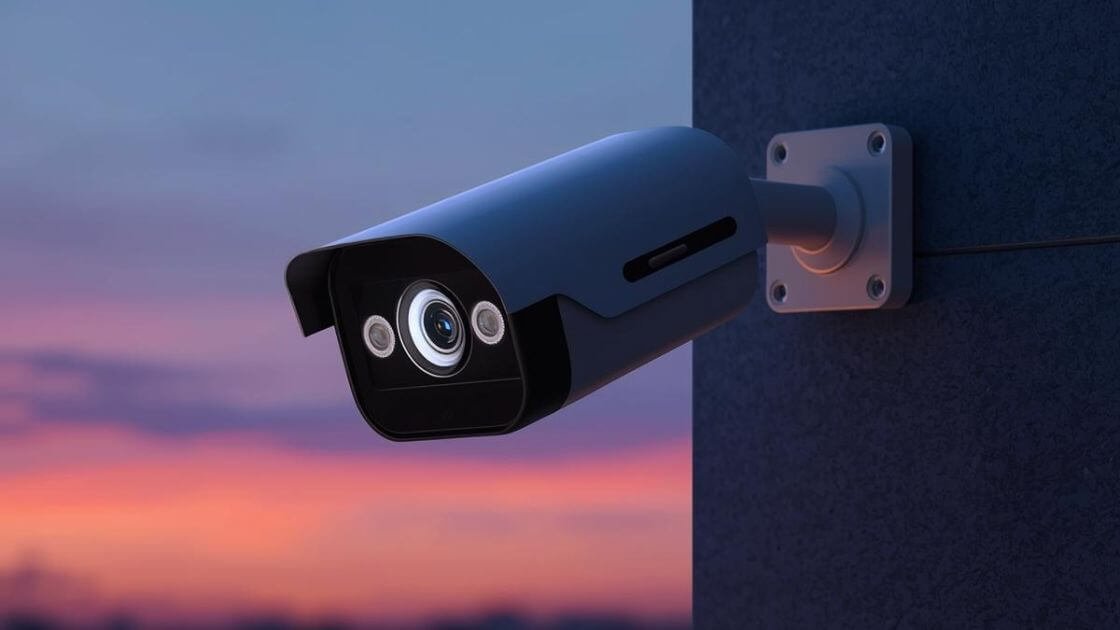
When you add the Aqara G5 Pro to Apple Home using Matter, setting up the camera in the Aqara Home app is the first step. After finishing this step, activate Pairing Mode by using the app. Open the Apple Home app, tap the “+” icon, and scan the Matter QR code. Then, name your camera and share it to the other platforms like Google Home.
Today, in this modern era, everything works together because of different technological advancements. The Aqara G5 Pro is an amazing example of this new era. It is an outdoor camera that speaks many languages. Also, this camera works with Google, Apple, and Amazon.
However, adding the Aqara G5 Pro to Apple Home via Matter creates a new and smart move. Due to this wonderful move, your security system is fast and private. To cover every step through this guide, we will give you useful information about the setup, the technical requirements, hidden tips, and more.
Understanding the Aqara G5 Pro Dual Role: Camera vs. Hub
Before moving forward to add the G5 Pro in your Apple Home app, knowing about an interesting and unique technical detail is important. The G5 Pro is not only a camera. It has two roles: camera and hub.
The Camera Entity
The G5 Pro is a high-resolution outdoor security camera. As a camera, its main function is to capture 4K video and use AI to detect people. By adding it via Matter, you are telling Apple Home to treat as a video source.
The Matter Bridge (The Hub)
The G5 Pro also acts as a Matter Bridge. We can say this is the “Secret Sauce.” Aqara uses Zigbee for its smaller sensors, such as door and leak sensors. The G5 Pro can ‘bridge’ those older sensors in your Apple Home app. You are installing a new brain for your entire smart home when you set up the G5 Pro via Matter.
Knowing about the Matter and HomeKit Gap
Cameras are included now in Matter 1.5 and 2.0. For basic features, this is the great thing. Moreover, you can get a live video stream. You can also use two-way audio. However, the special features of the Apple need a direct link. These features are called HomeKit Secure Video (HKSV) features. They include recording to iCloud. These features have the ability to recognize familiar faces. Also, they drawing particular activity zones. For these advanced tools, the native HomeKit connection is necessary. When you use native HomeKit connection, you can get deeper Apple intelligence.
Your Pre-Setup Checklist: What You Need
You should remember that preparation is very important for a smooth setup. If you do setup without any preparation, it will ruins your whole process. To avoid this situation, make sure you have these items before you start. These include the following:
Hardware You Must Have
The following items you must have:
- Apara G5 Pro camera (Wi-Fi or PoE model)
- An Apple Home Hub. This can be a HomePod (2nd Gen) or a HomePod mini. The hub must stay home and powered on.
- Apple TV 4K (make sure to have the Ethernet version)
- A stable outdoor power source or a PoE injector
Network Requirements
You must remember that the G5 Pro is a 4K camera. It eats bandwidth for breakfast. So, you should make sure to have:
- A strong 2.4 GHz Wi-Fi network is necessary for initial setup. On 5 GHz networks, the camera works.
- Using a Cat6 cable is best if you have the PoE (Power over Ethernent) version. This is much more stable than Wi-Fi.
The Digital Keys
Downloading the Aqara Home App is the first step. Make sure your iPhone is running the latest version of iOS. Furthermore, you will need the Matter QR Code. This is generally on a sticker inside the box or under the waterproof flap of the camera.
Adding Aqara G5 Pro to Apple Home via Matter: Step-by-Step
You can make your entire process smooth by following these steps:
Step 1: Start with Aqara Home App
Before going to the Apple Home app, download the Aqara Home app from the App Store first. After downloading the app, open it.
- Create an account (if you don’t have one) or login.
- Tap the ‘+’ to add a new device after creating the account. Select the G5 Pro from the list.
- Follow the instructions that show on the screen. Plug in your camera. Connect it to your Wi-Fi.
- Check for a firmware update. Go to Device Settings > Firmware Update and install the latest version. This will make sure better Matter stability.
Step 2: Entering Pairing Mode
Now, tell the camera you want to connect it elsewhere. If you use camera before, applying a reset is necessary.
- Locate the reset button on the back of the camera.
- Hold it for 5-10 seconds. When the LED flashes yellow or amber, release it. The camera will announce “ready to connect.”
The above-mentioned process is called the physical method. You have another option also. This is called “App Method.”
App Method
- Go to the settings of your G5 Pro inside the Aqara Home App.
- Tap ‘More Settings’ or ‘Accessory Details.’
- Look for an option “Turn on Pairing Mode” or “Matter Pairing.” Tap it.
Step 3: Integrate with Apple Home
This is the main and most important event.
- Open the Apple Home App on your iPhone or iPad.
- Tap the ‘+’ icon in the top right corner.
- Select “Add Accessory.”
- Scan the Matter QR Code on the G5 Pro. The option of entering the 11-digit setup code manually is also available.
- The app will find the camera and ask you to assign it to a room. You can select “Front Yard,” “Back Door,” or create a new one.
- Give your camera a clear name. This helps with voice commands.
- Tap ‘Continue’ and then ‘Done.’ The live feed of your camera should now appear in Apple Home.
Step 4: Manage Access with Multi-Admin
Multi-Admin is among the best elements of Matter. You can share the camera (added via Apple Home) to other ecosystems without re-adding it. The process is including the following:
- Tap your new camera’s settings in Apple Home.
- Scroll to find “Matter Accessories” or “Accessory Details.”
- Look for a “Share…” button.
- Use the special code or link, generated by Apple Home, in the Google Home, Amazon Alexa app, or Samsung SmartThings. Your camera will appear there too. This is called Multi-Admin. This feature keeps everything in sync.
Advance Features via Matter Bridging
You must know that your G5 Pro is a new team player in Apple Home. We will explore its hub powers below:
Keeping Automations Local
Matter gives importance to local communication. This is a main advantage for security. Create an automation like ‘turn on the porch light if the door sensor opens.’ This automation runs directly between devices. To do this process, internet is not required. Your automations also keep working if your Wi-Fi is down due to some issues. This is important for reliable security.
Bridging Sub-Devices
Do you have Aqara vibration sensors or temperatures tags? The G5 Pro is an amazing tool. It can pull these extra sensors into Apple Home. Below, the entire process:
- Go to the Aqara Home app first. Pair those sensors directly to the G5 Pro hub.
- These sensors will automatically appear in your Apple Home app after paired. This happens due to Matter.
- You will see these sensors as separate accessories. Now, in this case, you can create powerful automations. For example, “Start recording on the G5 Pro when the backyard motion sensor detects movement.”
Comparison: Matter vs. Native HomeKit
Do you know which method is best for you? The following table shows the comparison:
| Feature | Using Matter (1.5+) | Using Native HomeKit |
| Live Video Streaming | Yes | Yes |
| Two-Way Audio | Yes | Yes |
| Facial Recognition | No | Yes |
| Works with Google/Alexa | Yes, smoothly | No, Apple only |
| Recording to iCloud+ | No | Yes |
| Local Automations | Yes | Yes |
| Custom Activity Zones | No | Yes |
| Person/Vehicle Alerts | Basic Detection | Advanced AI Detection |
If you want to get wide compatibility across different smart homes, choosing Matter is best. However, select native HomeKit for the deepest Apple security features. To get the total control, both connections can also be configured by users who have a good knowledge of modern technology.
How to Fix Common Matter Connection Issues
Matter is a great tool. However, it is not perfect. Below, there are fixes for some frequent issues.
Issue: AccessoryNot Found
Generally, this is a network issue. Matter is dependent on a protocol called mDNS.
- First, you must make sure your phone is on the same Wi-Fi band as the camera. Then, restart your router.
- Disable ‘AP Isolation’ in your settings if it is turned on.
Issue: Unable to Add Accessory
The “Matter pairing window” might have closed if the pairing fails halfway. This is usually a software glitch.
- Immediately close your Apple Home app and swipe it away from your app switcher.
- Restart your iPhone.
- Restart your Apple Home Hub (unplug your HomePod, then plug it back in). Try the process again.
Troubleshooting: 3 Common G5 Pro Setup Hurdles
You must remember that things can get tricky even you use Matter. Try these fixes first if your Aqara G5 Pro is not appearing in Apple Home.
1. The “IPv6” Router Trap
Most modern US routers, such as Eero or Netgear Orbi have a setting called ‘IPv6.’ It should be turned ON for communication. If you’re stuck on the ‘Connecting’ screen, log into your router app and make sure IPv6 is enabled.
2. “Bluetooth Disconnected” Error
If you have a Bluetooth error on your iPhone (iOS 19+), it is usually an app permission issue.
How to fix this issue? Go to Settings > Apps > Aqara Home. Make sure Bluetooth and Local Network are both changed ON. Your phone cannot see the camera on your Wi-Fi without ‘Local Network’ access.
3. The 2.4GHz Wi-Fi “Split”
The G5 may struggle to pair if you are using a dual-router that combines 2.4GHz and 5GHz.
How to fix it? Turn off your 5GHz band temporarily or move further away from your router during the initial 2-minute pairing process. This process is done to force your phone onto 2.4 GHz. You can get turn 5 GHz back on if paired.
Aqara G5 Pro vs. the Competition (2026 Comparison)
Are you thinking about how Aqara G5 Pro is the right option for your home? To answer this question, we will compare it to the two most popular outdoor cameras in the US:
- Nest Cam
- Ring Spotlight Cam Pro
Comparison Table
| Feature | Aqara G5 Pro | Nest Cam | Ring Spotlight Cam Pro |
| Resolution | 2.6K (Quad HD) | 1080p / 2K | 1080p / 2K |
| Local Storage | 8 GB eMMC Built-in | Limited (1 hour backup) | None (Cloud only) |
| Power | Wi-Fi or PoE | Battery or Wired | Battery, Wired, or Solar |
| Hub Function | Yes (Zigbee/Thread) | No | No |
| Smart Home | Matter, Apple, Google, Alexa | Google Home, Alexa | Alexa (Primary) |
| Monthly Fee | $0 (with iCloud+) | $8 – $15 (Nest Aware) | $5 – $10 (Ring Protect) |
The Pros: Why the Aqara G5 Pro Wins in 2026
- The “No-Fee” Champion
If you are already paying for iCloud+, the G5 Pro uses HomeKit Secure Video (HKSV). This thing allows you to get 10 days of Cloud recording for free. If we look other outdoor cameras (Ring Spotlight Pro and Nest Cam), they would charge you $60 – $100 per year for the same thing.
- Professional Power (PoE)
The G5 Pro is one of the only “Prosumer” cameras that offers a Power over Ethernet (PoE) version. This is an amazing thing for you if you want a lag-free connection that never needs a battery charge.
- Built-in AI for free
The Aqara G5 Pro does “Person and Vehicle” recognition on-device for free. However, Nest Cam offers the same the thing with a fee.
- Night Vision
It captures color at night with almost zero ambient light because of its f/1.0 aperture. This thing defeats the blur night footage produced by the normal Ring cams.
The Cons: What to Watch Out For
- Complicated App
When we compare to the very simple Google Home or Ring apps, the Aqra Home App can feel “overloaded” due to its number of features.
Tip: To avoid this issue, just use the Apple Home app once you set up Aqara Home app.
- No Power Adapter
It is a surprising thing that the Wi-Fi version has a USB-C cable but no wall plug. So, in this case, you will need to have your own 5V/2A US power adapter.
- Ecosystem Depth
The Aqara G5 Pro is worked with Google and Alexa. However, Apple users can use it effectively. The Nest Cam still offers a smooth experience if you have an Android phone.
Frequently Asked Questions
Do I need the Aqara app after setup?
Sometimes you will need it. Use it to upgrade the firmware. Also, use it to connect new sub-devices to the hub. For your daily viewing and automations, Apple Home is a best option.
Can I use both PoE and Matter together?
Yes, of course. The PoE model works in a perfect way. This model uses single Ethernet cable for both power and data. Compared to Wi-Fi, this frequently offers a more stable connection.
Where exactly is the Matter QR Code?
Check out the printed quick-start guide. Open the back compartment of the camera if it is not there. There is a small, durable label inside with the number and QR code. Do not remove this label.
Will my sensors work if the internet is down?
Yes. The G5 Pro hub and its sensors are connected locally. Without the internet, any automations that use those sensors will continue to work.
Can I share camera access with my family?
Yes, it is very simple. Use the standard sharing option in Apple Home. Go to the app’s Home Settings. Click “Invite People.” With their own Apple devices, family members may now fully manage the camera.
To Finalize
The Aqara G5 Pro is an important upgradation for your smart home. Its dual function as a camera and a central hub can be unlocked when you add it via Matter. Through this article, you were guided through the smooth setup. You now have a reliable system that work across platforms. Without demanding any monthly fees, it offers professional security. Enjoy a smart home that is easy to use, more connected and more private.